
- Community Home
- How To's
- My account How To's
- How to view past bills & payments
Options
- Subscribe to RSS Feed
- Mark as New
- Mark as Read
- Bookmark
- Subscribe
- Printer Friendly Page
- Report Inappropriate Content
100% helpful
(3/3)

BellAlexander
Community Manager
Options
- Article History
- Subscribe to RSS Feed
- Mark as New
- Mark as Read
- Bookmark
- Subscribe
- Printer Friendly Page
- Report Inappropriate Content
on 04-01-2026 03:19 PM
Need to find your past bills & payments?
Follow the seven easy steps below to find your billing history and past bills from up to 18 months.
- Once logged in to MyBell, you will be redirected to the My services page.
- Select the My bills and payments tab.
- Select the bill you would like to view.
- Your current bill will be displayed.
- Select the Past bills tab (located next to the Current bill tab).
- Scroll down to view your Detailed history.
- Select the magnifying glass icon to open a past bill.
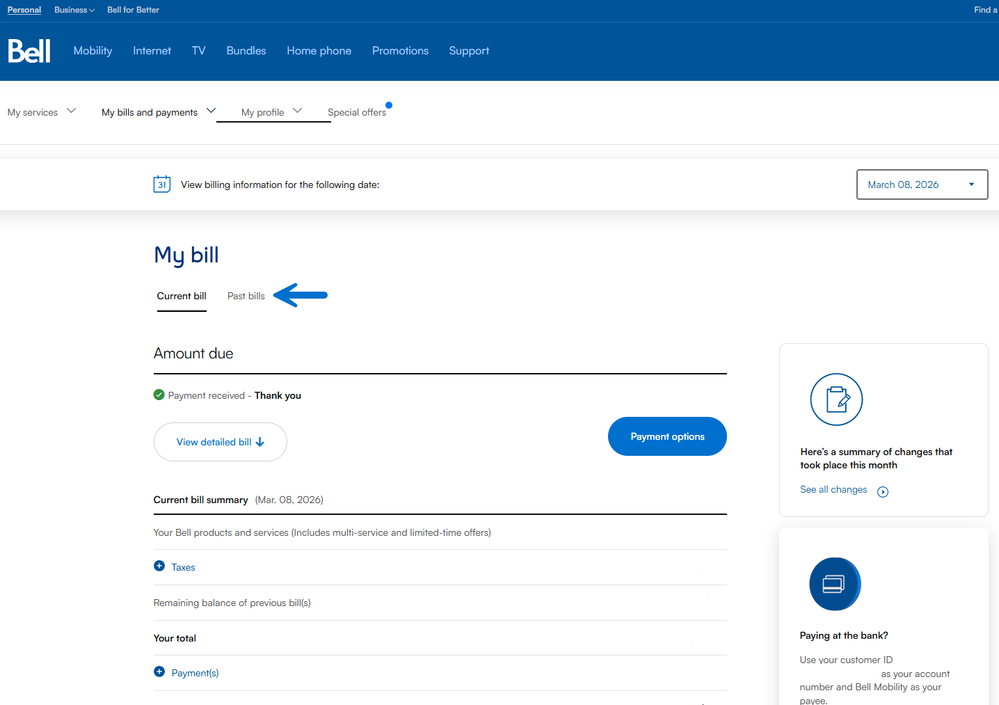
The Past bills tab displays your billing trends over the last four months. Scroll down to view your detailed billing history. Your billing history will display your past bills from up to 18 months. The download icon allows you to download a past bill.
Note: The checkmark beside a specific bill indicates that the bill contained important messages (e.g., rate adjustments).
Select the Payments tab to view your detailed payment history. It provides details such as the date of the payment, the payment method and the amount paid.

For more information on past bills, payments and bill comparison check out How to view current and past bills and payments.
Getting started
New to our forum? These guides will help you find your way around quickly.
- Welcome to the Community!
- Log in/Register
- Community guidelines
- Community help
- Meet the Moderators
- Bell Community All-Stars
- How to send a private message
- Existing customers, login to MyBell to see exclusive offers
- What's on Crave
- What's on Free Preview
- Mobility phone & device catalog
- Latest in the Community
Popular links


Labels
-
Activation
1 -
Bill
4 -
Bill Copy
1 -
Bill Cycle
1 -
Bill Date
1 -
Bill Payment
5 -
Change Feature
1 -
Check Usage
1 -
Device Balance
2 -
eBill
3 -
Fibe TV
2 -
Hardware Upgrade
2 -
Internet
2 -
Mobility
1 -
Monthly Bill
3 -
My Account
3 -
My Bell App
10 -
One Bill
5 -
Online Banking
2 -
Online Profile
9 -
Password
2 -
Past Bill
1 -
Reset Password
1 -
Self Serve
12 -
Smart Pay
1 -
upgrade
2 -
Usage
3
- « Previous
- Next »