
- Community Home
- Internet
- Can I turn off Wi-Fi broadcasting?
Options
- Subscribe to RSS Feed
- Mark Topic as New
- Mark Topic as Read
- Float this Topic for Current User
- Bookmark
- Subscribe
- Mute
- Printer Friendly Page

Options
- Mark as New
- Bookmark
- Subscribe
- Mute
- Subscribe to RSS Feed
- Permalink
- Report Inappropriate Content
05-11-2022 08:16 PM - last edited on 02-16-2024 08:44 AM by BellAlexander
1
26
57.9K
3 helpful replies
Accepted Solutions

Options
- Mark as New
- Bookmark
- Subscribe
- Mute
- Subscribe to RSS Feed
- Permalink
- Report Inappropriate Content
05-13-2022 02:41 PM - last edited on 07-18-2022 02:05 PM by BellAlexander
Hi @MindfulGal, thanks for your post and welcome to the Bell Community. Great suggestion @AlexS 🙂
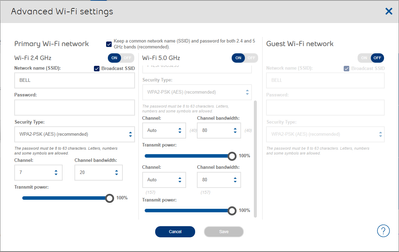
When you log into your modem portal via 192.168.2.1 select Manage my Wi-Fi to turn Whole Home Wi-Fi ON & OFF.
You should then see the Advanced Wi-Fi Setting menu. From there you can turn off the Wi-Fi radios by using the ON/OFF slider.


Options
- Mark as New
- Bookmark
- Subscribe
- Mute
- Subscribe to RSS Feed
- Permalink
- Report Inappropriate Content
09-26-2022 04:29 PM
I believe there are still hidden wifi channels which support Fibe TV and the pods which remain active. You can turn off some but not all wireless signals. It also depends on the modem.
I am a Community All-Star and customer. I'm here to help by sharing my knowledge and experience. My views on Bell and the Community Forum are my own and not the views of Bell or any of its affiliates.

Options
- Mark as New
- Bookmark
- Subscribe
- Mute
- Subscribe to RSS Feed
- Permalink
- Report Inappropriate Content
07-25-2023 11:15 AM - last edited on 11-05-2026 10:00 AM by BellNick
There is no simple way of doing this with just an on or off button or time of day set to turn off your Wi-Fi with your modem
Here are two methods of controlling Wi-Fi:
1. Bell Modem
When you log into your modem portal via 192.168.2.1 select Manage my Wi-Fi to turn Whole Home Wi-Fi ON & OFF. You should then see the Advanced Wi-Fi Setting menu. From there you can turn off the Wi-Fi radios by using the ON/OFF slider.
2. Bell Wi-Fi app
This a much simpler & easier method of controlling your devices & their usage.
What is the Bell Wi-Fi app and how do I use it?
What is the Bell Wi-Fi app and how do I use it? : Installing the Bell Wi-Fi app
Managing your connected devices
Managing your connected devices
View devices and connection information.
View all the devices connected to your Wi-Fi network.
- Open the Bell Wi-Fi app and log in with your MyBell username and password.
- Touch the devices icon at the bottom of the home screen.
- Under the device name, you can see how long it has been online or when it was last connected to your network. If a device is offline for more than two weeks, it will be removed from the list.
- Select a device to learn more about it.
- Under the device name, you’ll see it’s connection quality rating, what channel it’s on and other device details.
- Touch a device name to change its name, or touch the menu icon (three dots) in the top right corner and select Rename device.
Block or pause Internet access by device
Quickly pause Internet access for a device, or schedule regular times when a device will be blocked from accessing the Internet.
- Open the Bell Wi-Fi app and log in with your MyBell username and password.
- Touch Devices at the bottom of the home screen.
- Select the device you wish to block Internet access.
- To pause Internet access immediately, touch Pause.
- Touch Pause once to block Internet access for 15 minutes, twice for 30 minutes, or a third time to remove the block.
- To schedule times when Internet access is blocked, touch Block Internet access.
- Select one of the available options to block the device for a period of time:
- Until end of day
- School nights
- Bedtime
- Indefinitely
- Custom
Note: You can customize the time range for the school nights, bedtime, and custom options by touching the time stamp above the option.
- Touch Set Internet block.
- To unblock a device, touch the X next to the Internet block on the device page, and then touch Unblock.
Keep in mind that this feature only limits Internet access from your Wi-Fi network. Cellular data can still be used while this function is enabled and downloaded content may still be accessible.
I am a Community All-Star and customer. I'm here to help by sharing my knowledge and experience. My views on Bell and the Community Forum are my own and not the views of Bell or any of its affiliates.
26 REPLIES 26
Options
- Mark as New
- Bookmark
- Subscribe
- Mute
- Subscribe to RSS Feed
- Permalink
- Report Inappropriate Content
05-13-2022 02:41 PM - last edited on 07-18-2022 02:05 PM by BellAlexander
Hi @MindfulGal, thanks for your post and welcome to the Bell Community. Great suggestion @AlexS 🙂
When you log into your modem portal via 192.168.2.1 select Manage my Wi-Fi to turn Whole Home Wi-Fi ON & OFF.
You should then see the Advanced Wi-Fi Setting menu. From there you can turn off the Wi-Fi radios by using the ON/OFF slider.

Options
- Mark as New
- Bookmark
- Subscribe
- Mute
- Subscribe to RSS Feed
- Permalink
- Report Inappropriate Content
09-18-2022 08:06 PM
Hi, I just got Bell FTTH this week. I simply cannot shut the 5.0 Ghz WiFi off! When I disable it, it comes back as a hidden network. Disabling does not mean to stop broadcasting the SSID, it means to shut if off.
I suspect that the 6.0 Ghz does the same.
The WiFi power slider seems to be broken, too. 10% is 1/10, a tenth of the strength. Not a few dB less than 100%.
Options
- Mark as New
- Bookmark
- Subscribe
- Mute
- Subscribe to RSS Feed
- Permalink
- Report Inappropriate Content
09-26-2022 04:29 PM
I believe there are still hidden wifi channels which support Fibe TV and the pods which remain active. You can turn off some but not all wireless signals. It also depends on the modem.
I am a Community All-Star and customer. I'm here to help by sharing my knowledge and experience. My views on Bell and the Community Forum are my own and not the views of Bell or any of its affiliates.
Options
- Mark as New
- Bookmark
- Subscribe
- Mute
- Subscribe to RSS Feed
- Permalink
- Report Inappropriate Content
04-12-2023 05:13 PM
Hi Patricia, a simple wifi analyzer on Android shows the hidden signal (hidden as having no broadcasted SSID).
Also, after turning 5.0 Ghz and 6.0 Ghz off, if I go under "Advanced tools and settings" / "Diagnostics", I see that 6.0 Ghz is off, but not 5.0 Ghz.
Options
- Mark as New
- Bookmark
- Subscribe
- Mute
- Subscribe to RSS Feed
- Permalink
- Report Inappropriate Content
07-25-2023 10:12 AM
HI there I would like to know how I can access my router and turn the wifi signal on and off or set the time of day when I want it to go off. That way I can control the kids access to it at any given time. I.e. Like when its time for lights out and go to bed
Options
- Mark as New
- Bookmark
- Subscribe
- Mute
- Subscribe to RSS Feed
- Permalink
- Report Inappropriate Content
07-25-2023 11:15 AM - last edited on 11-05-2026 10:00 AM by BellNick
There is no simple way of doing this with just an on or off button or time of day set to turn off your Wi-Fi with your modem
Here are two methods of controlling Wi-Fi:
1. Bell Modem
When you log into your modem portal via 192.168.2.1 select Manage my Wi-Fi to turn Whole Home Wi-Fi ON & OFF. You should then see the Advanced Wi-Fi Setting menu. From there you can turn off the Wi-Fi radios by using the ON/OFF slider.
2. Bell Wi-Fi app
This a much simpler & easier method of controlling your devices & their usage.
What is the Bell Wi-Fi app and how do I use it?
What is the Bell Wi-Fi app and how do I use it? : Installing the Bell Wi-Fi app
Managing your connected devices
Managing your connected devices
View devices and connection information.
View all the devices connected to your Wi-Fi network.
- Open the Bell Wi-Fi app and log in with your MyBell username and password.
- Touch the devices icon at the bottom of the home screen.
- Under the device name, you can see how long it has been online or when it was last connected to your network. If a device is offline for more than two weeks, it will be removed from the list.
- Select a device to learn more about it.
- Under the device name, you’ll see it’s connection quality rating, what channel it’s on and other device details.
- Touch a device name to change its name, or touch the menu icon (three dots) in the top right corner and select Rename device.
Block or pause Internet access by device
Quickly pause Internet access for a device, or schedule regular times when a device will be blocked from accessing the Internet.
- Open the Bell Wi-Fi app and log in with your MyBell username and password.
- Touch Devices at the bottom of the home screen.
- Select the device you wish to block Internet access.
- To pause Internet access immediately, touch Pause.
- Touch Pause once to block Internet access for 15 minutes, twice for 30 minutes, or a third time to remove the block.
- To schedule times when Internet access is blocked, touch Block Internet access.
- Select one of the available options to block the device for a period of time:
- Until end of day
- School nights
- Bedtime
- Indefinitely
- Custom
Note: You can customize the time range for the school nights, bedtime, and custom options by touching the time stamp above the option.
- Touch Set Internet block.
- To unblock a device, touch the X next to the Internet block on the device page, and then touch Unblock.
Keep in mind that this feature only limits Internet access from your Wi-Fi network. Cellular data can still be used while this function is enabled and downloaded content may still be accessible.
I am a Community All-Star and customer. I'm here to help by sharing my knowledge and experience. My views on Bell and the Community Forum are my own and not the views of Bell or any of its affiliates.
Options
- Mark as New
- Bookmark
- Subscribe
- Mute
- Subscribe to RSS Feed
- Permalink
- Report Inappropriate Content
09-03-2023 02:05 PM
What if you run it in bridge mode?

Options
- Mark as New
- Bookmark
- Subscribe
- Mute
- Subscribe to RSS Feed
- Permalink
- Report Inappropriate Content
09-03-2023 03:45 PM - edited 09-03-2023 03:46 PM
Bell's modems can't be connected in bridge mode, so they can't be entirely bypassed. You would run PPPoE (Ontario; Quebec) or DHCP (Atlantic Canada) to connect a router.
So even if you turn off wifi on the modem and enable it on your router, there's no guarantee of completely disabling all the radios. Just something as simple as a firmware update on the modem will launch a reboot.
I am a Community All-Star and customer. I'm here to help by sharing my knowledge and experience. My views on Bell and the Community Forum are my own and not the views of Bell or any of its affiliates.
Options
- Mark as New
- Bookmark
- Subscribe
- Mute
- Subscribe to RSS Feed
- Permalink
- Report Inappropriate Content
02-15-2024 10:13 PM - last edited on 02-16-2024 08:44 AM by BellAlexander
Hello,
i would like to turn off the Wi-Fi when i go to sleep and was wondering if there was a way to shut off the Wi-Fi from the Bell app or Bell Wi-Fi app for iphone?!
I have a HH4000
thank you,

Options
- Mark as New
- Bookmark
- Subscribe
- Mute
- Subscribe to RSS Feed
- Permalink
- Report Inappropriate Content
08-03-2024 07:19 AM - last edited on 08-06-2024 08:28 AM by BellAlexander
Cannot seem to find any WIFI parameters to stop broadcasting my SSID
Options
- Mark as New
- Bookmark
- Subscribe
- Mute
- Subscribe to RSS Feed
- Permalink
- Report Inappropriate Content
08-03-2024 07:59 AM - edited 08-03-2024 08:00 AM
Good Day.
I am not sure why you would want to do this. Your system is not going to be any more secure by doing so. It will also create additonal manual set up for your devices.
There is no option per se to just turn off Home Hub 4000 SSID from displaying. You can disable the SSID broadcast if you turn off Whole Home Wi-Fi.
To do so, please follow the steps included in this helpful reply:
Solved: Re: Home Hub 4000 SSID broadcast off - Page 2 - Bell
Take care
I am a Community All-Star and customer. I'm here to help by sharing my knowledge and experience. My views on Bell and the Community Forum are my own and not the views of Bell or any of its affiliates.
Options
- Mark as New
- Bookmark
- Subscribe
- Mute
- Subscribe to RSS Feed
- Permalink
- Report Inappropriate Content
09-04-2024 03:11 AM - last edited on 09-04-2024 05:31 PM by BellPatricia
I have my own access point, in a much better location than the Home Hub 3000 (HH3k), so I have disabled the Whole Home Wi-Fi and turned off the radios in the HH3k (that I can). But I still see devices connected to the Wi-Fi on the HH3k! How can they connect if the Wi-Fi is disabled? Who is connecting? How can I prevent them from connecting?


Options
- Mark as New
- Bookmark
- Subscribe
- Mute
- Subscribe to RSS Feed
- Permalink
- Report Inappropriate Content
09-04-2024 07:18 AM
There is no option per se to just turn off Home Hub 3000 SSID from displaying. You can disable the SSID broadcast if you turn off Whole Home Wi-Fi.
To do so, please follow the steps included in this helpful reply:
Home Hub 3000
- Log into Home Hub 3000 admin GUI on Web by entering 192.168.2.1 in the browser address bar
- Click on Manage my Wi-Fi
- If prompted, enter password: admin
- You should then see the Wi-fi settings. Turn Off the Primary Wi-Fi network and Guest Wi-fi network.
- Click on Save
Take care
I am a Community All-Star and customer. I'm here to help by sharing my knowledge and experience. My views on Bell and the Community Forum are my own and not the views of Bell or any of its affiliates.
Options
- Mark as New
- Bookmark
- Subscribe
- Mute
- Subscribe to RSS Feed
- Permalink
- Report Inappropriate Content
09-04-2024 09:25 AM
The second 5 Ghz band is for TV devices and cannot be disabled. It's always on, even if you shut off the whole home WiFi completely.
It's technically speaking not a regular WiFi channel and cannot be used to connect regular devices. Only the TV boxes can connect to it.
I am a Community All-Star and customer. I'm here to help by sharing my knowledge and experience. My views on Bell and the Community Forum are my own and not the views of Bell or any of its affiliates.

Getting started
New to our forum? These guides will help you find your way around quickly.
- Welcome to the Community!
- Log in/Register
- Community guidelines
- Community help
- Meet the Moderators
- Bell Community All-Stars
- How to send a private message
- Existing customers, login to MyBell to see exclusive offers
- What's on Crave
- What's on Free Preview
- Mobility phone & device catalog
- Latest in the Community


