- Community Home
- How To's
- Internet How To's
- How to freeze or pause internet access
Options
- Subscribe to RSS Feed
- Mark as New
- Mark as Read
- Bookmark
- Subscribe
- Printer Friendly Page
- Report Inappropriate Content
25% helpful
(1/4)

BellDRock
Community Manager
Options
- Article History
- Subscribe to RSS Feed
- Mark as New
- Mark as Read
- Bookmark
- Subscribe
- Printer Friendly Page
- Report Inappropriate Content
on 08-16-2023 02:23 PM
Freeze or Pause by user profile:
Create user profiles for the people who use your Wi-Fi network so you can pause or block Internet access for all a user’s devices at once, rather than one device at a time.
Open the Bell Wi-Fi app and log in with MyBell username and password.
Get help logging into the Bell Wi-Fi App
1. Touch the People icon at the bottom of the Home screen.
2. Touch the Plus sign to add a user.
3. Touch Create a person.
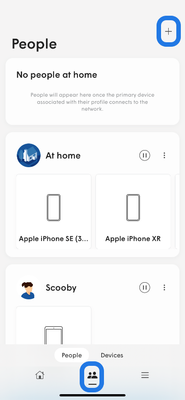
4. Add a Photo and name, then click Done.
5. Once you’re on the profile page, touch the three dots in the top right corner to assign devices to the user so you can pause all their devices at once
6. Touch the pause icon beside the user you would like to pause
Select between
- Set time out…
- Freeze until midnight
- Freeze indefinitely
7. Set the amount of time to pause Internet, then click Done
8. To re-enable Internet access to a paused profile, touch the pause icon again
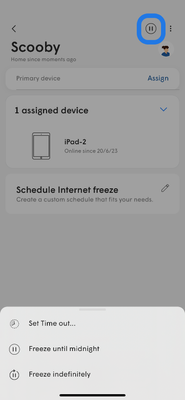
Note: You cannot pause a profile that contains the device on which you are using the app.
Freeze or Pause by device:
In addition to pausing internet by user, you can also pause internet by device. Quickly pause Internet access for a device, or schedule regular times when a device will be blocked from accessing the Internet. Here’s how:
Open the Bell Wi-Fi app and log in with your MyBell username and password.
1. Touch the People icon at the bottom of the home screen.
2. Touch Devices.
3. Touch the name of the device you wish to block Internet access.
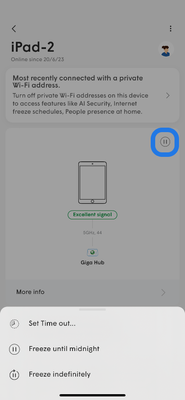
4. To pause Internet access, touch the Pause icon.
Select between
- Set time out…
- Freeze until midnight
- Freeze indefinitely
5. To unblock a device, touch the X next to the blocked device on the device page, and then touch Unblock.
6. To schedule times when Internet access is blocked, touch Schedule Internet freeze.
7. Touch New freeze schedule
8. Select one of the available options to block the device for a period of time:
- School nights
- Bedtime
- Indefinitely
- Custom
9. To unblock a schedule tap the delete icon next to the schedule on the Schedule Internet freeze page.
Note: Keep in mind that this feature only limits Internet access from your Wi-Fi network. Cellular data or Ethernet connections can still be used while this function is enabled and downloaded content may still be accessible.
Comments

Wooley1
Contributor
- Mark as Read
- Mark as New
- Bookmark
- Permalink
- Report Inappropriate Content
11-21-2023
09:11 PM
When I do this (checked both the IP address and MAC address) it says it's pausing access and even counts down the time but does nothing to the device's actual access. This is an iPhone with cellular turned off and an iPad with only WIFI. I've tried different devices on different days. The app is freshly downloaded. The web-based app for the Home Hub 3000 works but is very slow and hard to use. I was told the phone app would solve all this, and it is much easier to use, but does literally nothing.

ACara
Contributor
- Mark as Read
- Mark as New
- Bookmark
- Permalink
- Report Inappropriate Content
03-28-2024
10:48 PM
@Wooley1 agreed over here - there is no pause option for an iPhone on the network.
Getting started
New to our forum? These guides will help you find your way around quickly.
- Welcome to the Community!
- Log in/Register
- Community guidelines
- Community help
- Meet the Moderators
- Bell Community All-Stars
- How to send a private message
- Existing customers, login to MyBell to see exclusive offers
- What's on Crave
- What's on Free Preview
- Mobility phone & device catalog
- Latest in the Community
Popular links


Labels
-
2.4GHz
1 -
5GHz
1 -
Bell Email
1 -
Bell Wi-Fi App
4 -
Bell Wifi App
1 -
Block
1 -
Change Feature
1 -
Check Usage
1 -
Error 1201
1 -
Error Code
1 -
Error Code 1000
1 -
Error Code 1100
1 -
Error Code 1101
1 -
Error Code 1102
1 -
Error Code 1202
1 -
Error Code 2000
1 -
Error Code 2001
1 -
Error Code 2002
1 -
Ethernet
4 -
Features
1 -
Fibe
2 -
Fibe Internet
1 -
Fibre
2 -
Giga hub
9 -
HH1000
3 -
HH2000
7 -
HH3000
10 -
HH4000
10 -
Home Hub
6 -
Home Hub 1000
1 -
Home Hub 2000
1 -
Home Hub 3000
1 -
Home Hub 4000
1 -
Internet
4 -
Internet Fibe
1 -
Internet Security
1 -
Internet Speed
2 -
Internet Usage
1 -
Manage Wi-Fi
1 -
Modem
2 -
My Bell App
2 -
MyBell
1 -
Outage
1 -
Parental Controls
1 -
Phishing
1 -
Pods
2 -
Reset Password
1 -
Service Interruption
1 -
Spam
1 -
Speed Test
2 -
Troubleshooting
1 -
Usage
1 -
Virtual Repair
2 -
Whole Home
1 -
Wi-Fi
6 -
Wi-Fi app
5 -
Wi-Fi Checkup Tool
2 -
Wi-Fi modem
4 -
Wi-Fi Pods
2 -
WiFi
2
- « Previous
- Next »