- Community Home
- Internet
- Re: Cannot access USB drive connected to my Home H...
Options
- Subscribe to RSS Feed
- Mark Topic as New
- Mark Topic as Read
- Float this Topic for Current User
- Bookmark
- Subscribe
- Mute
- Printer Friendly Page

Options
- Mark as New
- Bookmark
- Subscribe
- Mute
- Subscribe to RSS Feed
- Permalink
- Report Inappropriate Content
02-09-2023 04:29 PM - last edited on 03-15-2025 11:57 AM by BellPatricia
Folks,
Despite initially being able to access the USB drive connected to my Home Hub 3000 router, I am no longer able, as confirmed via the following exception I'm now receiving:
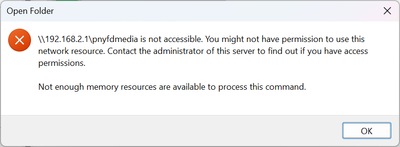
About a month ago, I did install Norton 360 but I'm not sure that it what's behind the behavioural change. I've tried disabling Norton but that hasn't altered my outcome.
Any suggestions would be most appreciated...thx!
Regards,
stillyy4u
Solved! Go to Solution.
Labels:
- Labels:
-
File sharing
-
Giga hub
-
HH3000
-
USB
0
42
8,734
42 REPLIES 42


Options
- Mark as New
- Bookmark
- Subscribe
- Mute
- Subscribe to RSS Feed
- Permalink
- Report Inappropriate Content
02-20-2025 04:31 PM
Try \\192.168.2.1
I am a Community All-Star and customer. I'm here to help by sharing my knowledge and experience. My views on Bell and the Community Forum are my own and not the views of Bell or any of its affiliates.

Options
- Mark as New
- Bookmark
- Subscribe
- Mute
- Subscribe to RSS Feed
- Permalink
- Report Inappropriate Content
02-20-2025 11:14 PM
Sure, that gives me access to he router, but not to the USB drive other than to show that the drive is connected to the router through USB. Can neither read nor write to the drive via that route.

Options
- Mark as New
- Bookmark
- Subscribe
- Mute
- Subscribe to RSS Feed
- Permalink
- Report Inappropriate Content
02-21-2025 11:21 AM
This issue keeps coming back for me but power cycling the router allows me to read and write to the drive for a few weeks usually. I havent found a more permanent solution but it's worth a try to see if that helps you
Options
- Mark as New
- Bookmark
- Subscribe
- Mute
- Subscribe to RSS Feed
- Permalink
- Report Inappropriate Content
02-21-2025 11:49 AM
Colint430: I have tried that, but will give it another whirl later today. (What's the definition of insanity? "Doing the same thing over and over again and expecting a different result." That doesn't apply in the IT world!
Options
- Mark as New
- Bookmark
- Subscribe
- Mute
- Subscribe to RSS Feed
- Permalink
- Report Inappropriate Content
02-21-2025 05:08 PM
Tried the reboot — unplugged the router, waited about 60 sec, repowered. No joy. Frustration continues. I'm beginning to wonder if it's a function of Windows 11.
Options
- Mark as New
- Bookmark
- Subscribe
- Mute
- Subscribe to RSS Feed
- Permalink
- Report Inappropriate Content
02-21-2025 05:22 PM
A couple of apologies. After the reboot, AND using \\192.168.2.1 in both File Explorer and Directory Opus (DOPUS), i now have access to that USB drive. I can read and write, and from network connected machines. It's all good. Thanks to everyone.

Options
- Mark as New
- Bookmark
- Subscribe
- Mute
- Subscribe to RSS Feed
- Permalink
- Report Inappropriate Content
03-14-2025 02:38 PM - last edited on 03-15-2025 11:59 AM by BellPatricia
All of a sudden I have lost access to my hard drive plugged into my Bell gigahub on my windows computer (I can still access the drive with my Mac though). I keep getting these messages....I tried different user names and PW with Bell technical support and no fixes.....This used to work a couple of months ago. Even tried troubleshooting with Windows support and no luck! Can anyone help me!???? I tried mapping the drive (second pic) and no luck.....


Options
- Mark as New
- Bookmark
- Subscribe
- Mute
- Subscribe to RSS Feed
- Permalink
- Report Inappropriate Content
03-14-2025 03:09 PM - last edited on 03-15-2025 11:59 AM by BellPatricia
Try installing SMB 2.0 or SMB 1.0. When Windows rolls out updates they tend to sometimes force SMB 3.0 only.
This will cause issues for network access when the network device does not support SMB 3.0.
Windows storage troubleshooter
Be aware using SMB 2 or 1 will come with security risks. While this likely will not affect you at all, it's still worth knowing that technically speaking this could result in a security issue.
I am a Community All-Star and customer. I'm here to help by sharing my knowledge and experience. My views on Bell and the Community Forum are my own and not the views of Bell or any of its affiliates.
Options
- Mark as New
- Bookmark
- Subscribe
- Mute
- Subscribe to RSS Feed
- Permalink
- Report Inappropriate Content
03-14-2025 06:22 PM - last edited on 03-15-2025 11:59 AM by BellPatricia
Thanks but this is above my pay grade.....
Options
- Mark as New
- Bookmark
- Subscribe
- Mute
- Subscribe to RSS Feed
- Permalink
- Report Inappropriate Content
03-14-2025 07:47 PM - last edited on 03-15-2025 11:59 AM by BellPatricia
I understand. Instead try this simpler method.
To enable SMB v1 in Windows 10 or 11, open the Start Menu or the search menu, then type “windows features” and choose Turn Windows features on or off.
From there you can select SMB 1.0/CIFS file sharing support by clicking it, like it shows in the picture from that link.
Reboot and it likely will start working again.
I am a Community All-Star and customer. I'm here to help by sharing my knowledge and experience. My views on Bell and the Community Forum are my own and not the views of Bell or any of its affiliates.
Options
- Mark as New
- Bookmark
- Subscribe
- Mute
- Subscribe to RSS Feed
- Permalink
- Report Inappropriate Content
03-15-2025 11:21 AM - last edited on 03-15-2025 11:59 AM by BellPatricia
Thanks! Can’t believe Bell’s latest hardware does not support SMB 3.0! Not impressed…In this day and age it should be plug and play…they even have instructions on their website on how to connect an external hard drive to the hub…so frustrating that it doesn’t work…
Options
- Mark as New
- Bookmark
- Subscribe
- Mute
- Subscribe to RSS Feed
- Permalink
- Report Inappropriate Content
03-15-2025 11:36 AM - last edited on 03-15-2025 11:59 AM by BellPatricia
By the way just tried what you suggested and it doesn’t work…bummed…

Options
- Mark as New
- Bookmark
- Subscribe
- Mute
- Subscribe to RSS Feed
- Permalink
- Report Inappropriate Content
03-17-2025 11:53 AM
Hi @Zarb
Thanks for reaching out to the Bell community and for all of the troubleshooting you have tried!
Can you provide us with a bit more information?
- Which version of Windows do you have (e.g. 10, 11 Home, 11 Pro)?
- Which version of Mac are you using?
- What is the make/model of your hard drive?
- Was there a recent update on your PC or any changes to your set up?
- When logging in are you using your modem admin password?
We hope to hear from you,
Options
- Mark as New
- Bookmark
- Subscribe
- Mute
- Subscribe to RSS Feed
- Permalink
- Report Inappropriate Content
03-18-2025 11:55 AM
Hi,
I have Windows 11 Pro on the computer that all this stuff is happening and I just got another one a couple of days ago running Windows 11 Home and the same thing is happening....My Mac is using Sequoia 15.3.1
My first windows PC is using a M.2 2280 PCIe Gen4 Performance TLC Opal hard drive and the new PC is using a M.2 2242 PCIe Gen4 TLC hard drive. both are using Intel processors.
The only updates I have done are the automatic window updates on both computers....
I was on the phone with Bell for at least an hour...Using my assigned username and PW (from the back of the modem) as well as admin for the user name with same pw (also tried admin as the pw as well) plus other combinations of which nothing worked....
I tried activating SMBv1 but didn't work...I did restart my PC to activate the change but I did not reboot my modem before trying...wondering if that would have been something to try?.....Just funny that it used to work and now it doesn't.....My MAC gives me a popup window when I try to access the HD and gives me a choice to input the administrators user/pw or click on guest with no pw required....imputting the admin user and pw doesn't work but clicking on guest works!
So frustrating that this has to be so hard!
Options
- Mark as New
- Bookmark
- Subscribe
- Mute
- Subscribe to RSS Feed
- Permalink
- Report Inappropriate Content
03-24-2025 12:09 PM - edited 03-24-2025 12:11 PM
Hey @Zarb
Thanks for the additional information 🙂
We discussed this with our internet tech team and they were able to do some testing on a Windows 11 laptop with version 24H2. We discovered it is necessary to enable the guest SMB in Windows in order to access any local storage connected to the modem gateway USB port.
After following the steps listed below, at initial login to the storage device on the USB port, enter guest in both the username and password box (but it should also work using any entry). Subsequent logins to the USB port on the modem will not request a username and password.
- Select Start, type gpedit.msc, and select Edit group policy.
- In the left pane under Local Computer Policy, navigate to Computer Configuration\Administrative Templates\Network\Lanman Workstation.
- Open Enable insecure guest logons, select Enabled, then select OK.

Both SMB signing, and SMB encryption policies must be disabled in Group Policy in order to use guest logons. Doing so can potentially compromise the security of the client and leave users open to credential theft and relay attacks.
Also note that guest logons don't support standard security features such as SMB signing and SMB encryption even if the SMB client is set to allow guest logons.
You can learn a bit more on this Microsoft support page: How to enable insecure guest logons in SMB2 and SMB3
Let us know how everything turns out!

Getting started
New to our forum? These guides will help you find your way around quickly.
- Welcome to the Community!
- Log in/Register
- Community guidelines
- Community help
- Meet the Moderators
- Bell Community All-Stars
- How to send a private message
- Existing customers, login to MyBell to see exclusive offers
- What's on Crave
- What's on Free Preview
- Mobility phone & device catalog
- Latest in the Community



