- Community Home
- Internet
- Re: Can't connect to USB plugged into my Gigahub
Options
- Subscribe to RSS Feed
- Mark Topic as New
- Mark Topic as Read
- Float this Topic for Current User
- Bookmark
- Subscribe
- Mute
- Printer Friendly Page

Options
- Mark as New
- Bookmark
- Subscribe
- Mute
- Subscribe to RSS Feed
- Permalink
- Report Inappropriate Content
02-09-2023 04:29 PM - last edited on 03-15-2025 11:57 AM by BellPatricia
Folks,
Despite initially being able to access the USB drive connected to my Home Hub 3000 router, I am no longer able, as confirmed via the following exception I'm now receiving:
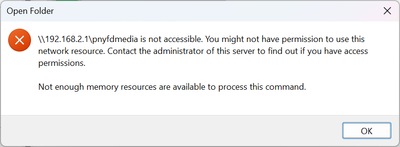
About a month ago, I did install Norton 360 but I'm not sure that it what's behind the behavioural change. I've tried disabling Norton but that hasn't altered my outcome.
Any suggestions would be most appreciated...thx!
Regards,
stillyy4u
Solved! Go to Solution.
Labels:
- Labels:
-
File sharing
-
Giga hub
-
HH3000
-
USB
0
42
8,844
42 REPLIES 42

Options
- Mark as New
- Bookmark
- Subscribe
- Mute
- Subscribe to RSS Feed
- Permalink
- Report Inappropriate Content
03-26-2025 10:33 AM
Thank you! I will try this and let you know....But my only question is why doesn't Bell allow access to the local storage using SMB signing and SMB encryption?? They have instructions on their website on how to connect and access a connected USB/hard drive to the modem yet it seems that it really doesn't work! Very confused and frustrated...
Options
- Mark as New
- Bookmark
- Subscribe
- Mute
- Subscribe to RSS Feed
- Permalink
- Report Inappropriate Content
03-26-2025 10:45 AM - edited 03-26-2025 10:46 AM
IT WORKED!!!!! Thank you so much!

Options
- Mark as New
- Bookmark
- Subscribe
- Mute
- Subscribe to RSS Feed
- Permalink
- Report Inappropriate Content
05-20-2025 03:06 PM - last edited on 05-21-2025 10:32 AM by BellNick
Hi,
I connected a USB pendrive to my Hub 3000, but I’m no longer able to access it from my Android phone or Android TV. However, I can still access the pendrive from my MacBook without any issues. Previously, I used to access the contents of the pendrive using VLC Player on both my Android TV and smartphone. But ever since I unplugged and reconnected the pendrive, this option no longer works.

Options
- Mark as New
- Bookmark
- Subscribe
- Mute
- Subscribe to RSS Feed
- Permalink
- Report Inappropriate Content
05-23-2025 08:33 AM
Hi there @Andysel
Thank you for your post and welcome to the Community.
We wanted to check in to see if you had a moment to review the thread, check out any suggestions and to see if you're still experiencing issues?
Looking forward to hearing back.

Options
- Mark as New
- Bookmark
- Subscribe
- Mute
- Subscribe to RSS Feed
- Permalink
- Report Inappropriate Content
10-30-2025 03:16 PM - last edited on 10-30-2025 03:39 PM by BellPatricia
Last night's 2.14.1 update broke access to the hard drive connected to the GigaHub..
Hello there! Are others experiencing a similar issue?
Since last night's update 2.14.1, it's been a nightmare trying to access the hard drive connected to the GigaHub without breaking everything (Wi-Fi incredibly slow, and the 192.168.2.1 interface almost inaccessible)
In summary:
- Everything was working fine until then
- Around 2 AM, I had a brief internet outage (a few minutes)
- When the connection came back, I couldn't properly access the hard drive connected to the modem (GigaHub)
- When I try to access a folder on the hard drive via my PC (connected directly to the router via LAN), everything becomes very slow. I lose access to the 192.168.2.1 page for several minutes, and even the Wi-Fi seems to become unstable (connection drops on my phone and on other devices)
- Checking the logs, there was indeed a firmware update at the time of the internet outage, so I'm sure that's the cause of the problems
- I'm not very familiar with this tool, but it seems the CPU usage is normal, around 55-65%.
- I've restarted several times, tested on other PCs and devices, both on Wi-Fi and LAN, and the problem persists everywhere. I also just test to run the Virtual Repair Tool, but with no results.
- And just to be sure, I also tested the hard drive directly on my PC and ran a diagnostic, and everything seems to be working fine on this side
The only way to get it back to normal is to unplug the hard drive...
I use this feature to easily share photos and videos between devices, but especially for my workflow to easily share work files between devices. It's crazy to see a feature broken like this by an update with no rollback option on the user side.
Are others experiencing this issue?
Thanks in advance


Options
- Mark as New
- Bookmark
- Subscribe
- Mute
- Subscribe to RSS Feed
- Permalink
- Report Inappropriate Content
10-31-2025 08:06 AM
Good Day & Welcome
Was the USB drive plugged in & operational at the time of the power outage? Have you tried plugging this drive into one of your other devices? Have you tried to run a CHKDSK on this drive?
Please login to your Bell modem. Go to > My devices. This will refresh your device page. Verify your connected devices. Close your web browser. Reboot your modem by doing a full power off. Reboot your computer. Reboot your external hard drive. Log back in your computer & verify that you have access to the drive.
Take care.
I am a Community All-Star and customer. I'm here to help by sharing my knowledge and experience. My views on Bell and the Community Forum are my own and not the views of Bell or any of its affiliates.
Options
- Mark as New
- Bookmark
- Subscribe
- Mute
- Subscribe to RSS Feed
- Permalink
- Report Inappropriate Content
10-31-2025 01:15 PM - last edited on 10-31-2025 01:17 PM by BellPatricia
Hey!
Thanks so much for your reply and your help!
But I've already tried everything you mentioned, as I wrote in my original post...
- I've restarted the modem several times, via the interface, the button, the power outlet, etc., with and without the hard drive connected. It doesn't fix the problem. As soon as I reconnect the hard drive and try to access it, everything becomes very slow (the explorer trying to access my hard drive, the Wi-Fi on all others devices, and accessing the 192.168.2.1 interface too).
- I've already checked that the hard drive is visible in > My Devices; everything seems OK there.
- The same goes for my PC. I've restarted it several times and tested it on other devices (Android TV, phones, other PCs, connected via LAN and Wi-Fi, some running on Win 10 and some on 11), same problem
- As mentioned, I also tested the hard drive directly on other devices, first on my PC, where I ran a full diagnostic, and everything is ok. I also tested it directly on my Android TV last night to see if the videos worked, and again, zero problems with the hard drive.
- I used the hard drive connected to the Gigahub maybe just a few hours before the Gigahub's update/restart, and it was right after the update that I tried to access it and encountered this problem.
Again, the problem isn't that I can't access it, but that everything starts lagging (Wi-Fi, the 192.168.2.1 interface, etc..) when I try to access it. Everything becomes incredibly slow, and everything returns to normal when I disconnect the hard drive from the Gigahub.
And again, given the timing and the fact that everything was working fine before the Gigahub update, I'm certain the problem stems from the update, or something related to it. In fact, a Reddit post mentioned a similar issue with 2.14, suggesting a possible memory leak.
At this point I think I've tried everything on my end, for now I'm using another solution to share my hard drive between my devices, but I would just like at least a support ticket to be created so someone like a technician or a support team member can take note of the problem, test it, and if it's reproducible, try to have a fix in a future update...

Options
- Mark as New
- Bookmark
- Subscribe
- Mute
- Subscribe to RSS Feed
- Permalink
- Report Inappropriate Content
10-31-2025 02:41 PM
Although I have tried all those steps previously and frequently, today, by accessing \\192.168.2.1, I have access to the disk. Whoever said that insanity is performing some action multiple times and expecting different results didn't live in today's computer world.
Options
- Mark as New
- Bookmark
- Subscribe
- Mute
- Subscribe to RSS Feed
- Permalink
- Report Inappropriate Content
11-03-2025 08:51 PM
What is your other solution to share your hard drive between devices?
Thanks!
Options
- Mark as New
- Bookmark
- Subscribe
- Mute
- Subscribe to RSS Feed
- Permalink
- Report Inappropriate Content
11-03-2025 09:24 PM
I did nothing specific; just plugged in the HD (again, as I had done many times previously), and was ablt to access it through \\192.168.2.1 doth in DOPUS and Explorer. Very weird.
Options
- Mark as New
- Bookmark
- Subscribe
- Mute
- Subscribe to RSS Feed
- Permalink
- Report Inappropriate Content
11-04-2025 05:46 AM - edited 11-04-2025 05:52 AM
Good Day & Welcome
In order to share a hard drive, folder or file in Windows 10 & 11 the devices must be connected to the same network. You'll need to turn on network discovery & file sharing. Go to > Network in File Explorer on your PC. Turn this on. Please refer to the following for further instructions.
File sharing over a network in Windows - Microsoft Support
Share things with nearby devices in Windows - Microsoft Support
Once you have completed the above, login to your Bell modem. Go to > My devices. This will refresh your device page. Verify your connected devices. If you are unable to view your device, close your web browser. Reboot your modem by doing a full power off. Reboot your computer. Reboot your external hard drive. Log back in your computer & verify that you have access to the drive.
Take care.
I am a Community All-Star and customer. I'm here to help by sharing my knowledge and experience. My views on Bell and the Community Forum are my own and not the views of Bell or any of its affiliates.

Options
- Mark as New
- Bookmark
- Subscribe
- Mute
- Subscribe to RSS Feed
- Permalink
- Report Inappropriate Content
11-20-2025 02:59 PM - last edited on 11-20-2025 03:04 PM by BellPatricia
I would like to link Windows 11's File History program to a SSD connected to my Bell model (Hub 4000) in order to get the program to regularly back-up my computer files to it.
How do I proceed. I have tried to use \\mynetwork or \\192.68.2.1 as the location of my usb drive but Windows Security states I don't have access.
Options
- Mark as New
- Bookmark
- Subscribe
- Mute
- Subscribe to RSS Feed
- Permalink
- Report Inappropriate Content
11-20-2025 03:25 PM
Good Day & Welcome to the Bell Community Forum.
In order to share a hard drive, folder or file in Windows 10 & 11 the devices must be connected to the same network. You'll need to turn on network discovery & file sharing. Go to > Network in File Explorer on your PC. Turn this on. Please refer to the following for further instructions.
File sharing over a network in Windows - Microsoft Support
Share things with nearby devices in Windows - Microsoft Support
Once you have completed the above, login to your Bell modem. Go to > My devices. This will refresh your device page. Verify your connected devices. If you are unable to view your device, close your web browser. Reboot your modem by doing a full power off. Reboot your computer. Reboot your external hard drive. Log back in your computer & verify that you have access to the drive.
To back up your files using Window's 11 File History, please refer to the instructions included in this article.
How to Perform a Backup Using File History in Windows 11 or Windows 10 - Microsoft Q&A
Take care.
I am a Community All-Star and customer. I'm here to help by sharing my knowledge and experience. My views on Bell and the Community Forum are my own and not the views of Bell or any of its affiliates.

- « Previous
- Next »
Getting started
New to our forum? These guides will help you find your way around quickly.
- Welcome to the Community!
- Log in/Register
- Community guidelines
- Community help
- Meet the Moderators
- Bell Community All-Stars
- How to send a private message
- Existing customers, login to MyBell to see exclusive offers
- What's on Crave
- What's on Free Preview
- Mobility phone & device catalog
- Latest in the Community


